Need TV Repair Services in Nairobi?
Certified technicians dispatched to you — same day.

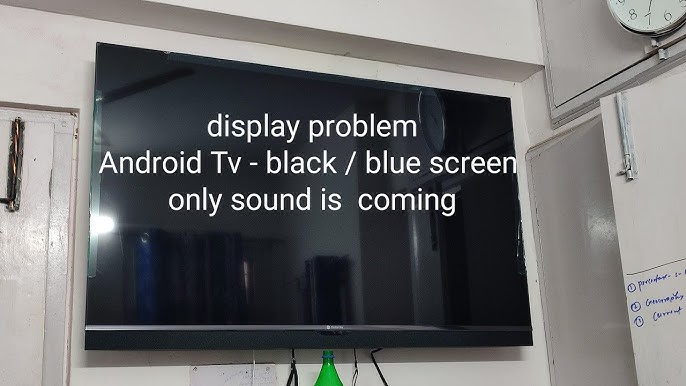
A common issue faced by TV owners is when the television screen goes dark, but the sound continues to play. This problem can be frustrating as you can hear everything but can't see the visuals. Several causes could be behind a dark screen with sound, ranging from minor settings issues to more serious hardware problems.
In this article, we will guide you through steps to fix a television displaying only a dark screen with sound and explain some common reasons behind this issue.
1. Check the Power and Connections
The first step in fixing this problem is to ensure that the TV is properly connected and powered. Sometimes, loose connections or faulty cables can cause display issues.
Steps:
- Check the Power: Ensure that the TV is plugged in and that the power light is on. If the TV is plugged into a surge protector or power strip, make sure it’s turned on.
- Inspect the Cables: Check the HDMI, AV, or other display cables connecting your TV to external devices like cable boxes, streaming devices, or gaming consoles. Unplug and re-plug the cables to make sure they are secure.
- Switch Inputs: Use the TV remote to cycle through the input sources (HDMI 1, HDMI 2, etc.). Sometimes, the issue is with the input device, and switching inputs can solve it.
2. Adjust the TV's Brightness and Picture Settings
Sometimes, a dark screen is caused by incorrect picture settings. You may have accidentally lowered the brightness or contrast settings, causing the screen to appear black.
Steps:
- Access the Picture Settings: Press the "Menu" button on your remote and navigate to the "Picture" or "Display" settings.
- Adjust the Brightness: Increase the brightness level and see if the picture reappears.
- Reset Picture Settings: If adjusting the brightness doesn’t work, try resetting the picture settings to default. This option is often available in the "Picture" menu and can restore the image.
3. Perform a Power Cycle (Restart the TV)
Sometimes, a simple power cycle can solve a dark screen issue. This helps reset the TV and clear any temporary glitches.
Steps:
- Turn Off the TV: Use the remote or the TV’s power button to turn it off.
- Unplug the TV: Unplug the TV from the power outlet and wait for about 30 seconds.
- Plug It Back In: After waiting, plug the TV back in and turn it on. Check if the screen comes back to life.
4. Test with a Different Source or Device
The problem could lie with the device that is connected to the TV, such as a cable box or streaming device.
Steps:
- Test a Different Source: Disconnect your current source (e.g., cable box) and connect a different one, such as a DVD player or game console. If the screen works with the new device, the issue might be with the original source.
- Try a Different Cable: A faulty HDMI or AV cable could also cause the screen to go dark. Try using a different cable to connect your TV to the device.
5. Check the Backlight
Most modern TVs use LED backlights to illuminate the screen. If the backlight is faulty, you will hear sound but won't see any picture.
Steps:
- Shine a Flashlight on the Screen: With the TV turned on, shine a flashlight at the screen at a close distance. If you can see faint images on the screen, it means the backlight is not working.
- Replace the Backlight: If the backlight is faulty, it will need to be replaced. This is a more technical fix, and it’s recommended to contact a professional technician to handle it.
6. Update the TV Firmware
Outdated software can cause display issues in some smart TVs. Updating the firmware can sometimes resolve a black screen problem.
Steps:
- Access the Settings: Using your remote, go to the "Settings" menu on your TV.
- Select Software/Firmware Update: Navigate to the "Support" or "About" section and look for the option to update the firmware.
- Install the Update: Follow the on-screen instructions to update your TV’s software. After updating, restart the TV and check if the screen issue is resolved.
7. Factory Reset the TV
If none of the above methods work, performing a factory reset could help. This will restore the TV to its original settings, removing any software glitches that may be causing the problem.
Steps:
- Go to the Settings Menu: Using the remote, navigate to the "Settings" or "Setup" section.
- Select Factory Reset: Look for the "Reset" option and choose "Factory Reset."
- Confirm the Reset: Follow the on-screen prompts to confirm the reset. Keep in mind that this will erase all custom settings and data on the TV.
- Check the Screen: After the reset is complete, check if the display is working properly.
8. Contact a Professional
If you've tried all the steps above and your TV is still displaying a dark screen with sound, the issue might be more complex, such as a problem with the power board or display panel. In this case, it’s best to contact a professional TV repair service to diagnose and fix the problem.
Conclusion
When your TV displays only a dark screen with sound, it can be caused by a range of issues, from simple settings adjustments to more serious hardware problems like a faulty backlight. By following the steps outlined in this guide, you can troubleshoot and fix the issue yourself in most cases. However, if the problem persists, professional help is recommended to avoid further damage