Need TV Repair Services in Nairobi?
Certified technicians dispatched to you — same day.
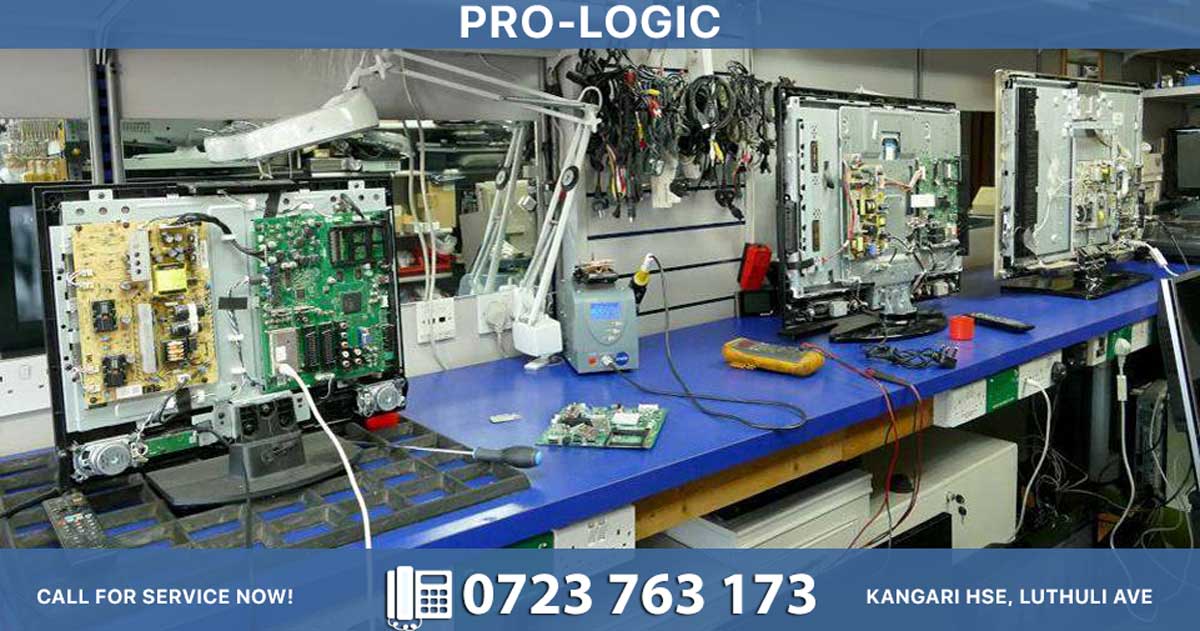
A bricked phone is one of the most frustrating tech problems you can face. Your device suddenly won't turn on, freezes on the boot logo, or behaves erratically—essentially becoming as useful as a brick. But don't panic: most bricked phones can be repaired. This guide explains what causes bricking, how to diagnose the problem, and proven methods to unbrick your Android or iPhone.
What Is a Bricked Phone?
A "bricked" phone is a device that has become unusable due to software corruption or hardware failure. There are two types:
| Type | Symptoms | Repair Difficulty |
|---|---|---|
| Soft Brick | Phone powers on but freezes, sticks on boot logo, crashes constantly, or won't boot past the manufacturer screen | Easy—usually fixable with software tools |
| Hard Brick | Phone won't turn on at all, no response to power button, no lights or sounds | Difficult—may require professional repair or hardware intervention |
Common Causes of Bricking
-
Corrupted firmware from incomplete software updates
-
Installing custom ROMs or rooting that goes wrong
-
Missing or deleted system files
-
Malware damaging the operating system
-
Hardware failure like damaged motherboard or battery
-
Liquid damage corrupting internal components
Step 1: Try a Forced Reboot
The simplest fix for a soft-bricked phone is a forced reboot:
-
Hold Power + Volume Down for 10–20 seconds (most Android devices)
-
For iPhones, hold Power + Volume Up/Down depending on your model
-
Wait for the device to restart normally
If your phone has a removable battery, remove it for several minutes, then reinsert and power on.
Step 2: Boot into Recovery Mode and Wipe Cache
Recovery Mode can fix many soft brick issues without erasing your data:
-
Power off the device
-
Hold Power + Volume Up (or Power + Volume Down) to enter recovery
-
Use volume buttons to navigate to "Wipe Cache Partition"
-
Select it with the power button, then reboot
Wiping cache clears temporary system files that may be corrupted after an update.
Step 3: Factory Reset (Wipe Data)
If cache wiping doesn't work, the next step is a factory reset:
-
Enter Recovery Mode as above
-
Select "Wipe Data/Factory Reset"
-
Confirm and wait for the process to complete
-
Reboot the system
Warning: This erases all personal data, apps, and settings. Only do this if you've backed up your phone or if data loss is acceptable.
Step 4: Flash Stock ROM or Factory Image
For phones that boot into Fastboot Mode but won't start normally, flashing the original firmware often works:
For Android (Qualcomm/三星 devices):
-
Download the official stock ROM for your exact model
-
Use tools like ODIN (Samsung), Fastboot (general Android), or MSM Download Tool (Qualcomm)
-
Connect your phone via USB and flash the firmware
For iPhone:
-
Use Finder (Mac) or iTunes (Windows)
-
Put iPhone in Recovery Mode (hold Power + Volume buttons)
-
Select "Restore iPhone" to reinstall iOS
Important: Always flash ROMs made specifically for your device model—flashing the wrong firmware can cause a hard brick.
Step 5: Remove Custom Modules or ROMs
If you installed custom ROMs, Magisk modules, or rooting tools that caused the brick:
-
Boot into recovery or ClockworkMod
-
Select the option to remove modules or restore previous ROM
-
Reboot
This reverses changes that corrupted your system.
Step 6: Restore from Android Backup (Nandroid)
If you previously created a full backup:
-
Enter recovery mode
-
Select "Restore Backup" or "Nandroid Restore"
-
Choose your backup and confirm
This restores your device to a previous working state.
Step 7: Try Professional Repair Software
Tools like UltFone Android System Repair, Mobikin, or FonePaw can unbrick phones automatically:
-
Install the software on your computer
-
Connect your bricked phone via USB
-
Select the repair option and follow prompts
These tools download the correct firmware and flash it automatically.
Step 8: Hardware Intervention (Hard Brick Only)
If your phone is completely unresponsive (hard brick):
-
Disconnect the battery for several minutes, bleed residual charge, then reconnect
-
Use JTAG tools to repair the bootloader on the motherboard
-
Visit a professional repair center for hardware-level intervention
For hard bricks, professional repair is often necessary since software tools may not work.
When to See a Professional
Contact a repair service if:
-
Your phone won't power on at all (hard brick)
-
Software fixes don't work after multiple attempts
-
You suspect hardware failure or liquid damage
-
You need to recover lost data before resetting
In Nairobi, Prologic Technologies on Luthuli Avenue offers professional bricked phone repair for all brands. Call 0723763173 for diagnosis and quotes.
Prevent Future Bricking
-
Backup regularly before updates
-
Download updates officially from your device manufacturer
-
Avoid rooting unless you're experienced
-
Use compatible ROMs matching your exact model
-
Keep battery charged during updates
Quick Summary
| Method | Best For | Data Loss? |
|---|
| Method | Best For | Data Loss? |
|---|---|---|
| Forced reboot | Soft brick, frozen screen | No |
| Wipe cache | Post-update bugs | No |
| Factory reset | Corrupted system files | Yes |
| Flash stock ROM | Fastboot mode but no boot | Yes |
| Professional repair | Hard brick, hardware failure | Depends |
Most soft-bricked phones can be fixed at home with these steps. Hard bricks usually require professional help. Start with the simplest fix (forced reboot) and escalate only if needed.